Ubercart's ability to add and remove roles automatically is a terrific feature - but some things about managing roles with Ubercart can be a little unintuitive.
How to Add an Ubercart Role
Most of the time, Ubercart handles adding roles automatically (once you've set up the initial configuration), but occasionally you may want to add an Ubercart role manually.
The confusing thing is this: if you try adding an Ubercart role that the user already has, it won't work.
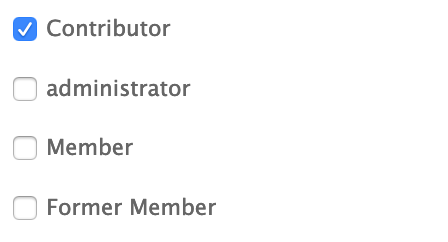
For example: a user may have the Member role, set as a regular Drupal role in the Roles section of the user profile.
To add an Ubercart version of this role, you must first remove the role from the Roles section. Once you do that, you can add an Ubercart role, with its automatic expiration date.
Step by step:
- Under Roles, clear the checkbox for Member, so it's no longer selected.
- Click Save to save your changes.
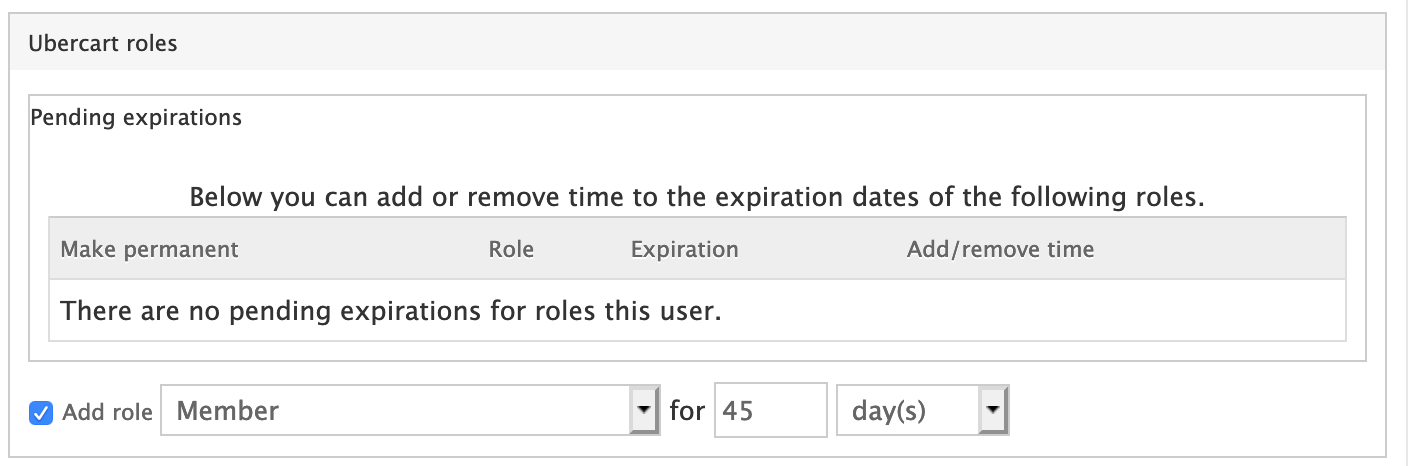
- Under Ubercart Roles, click Add role, and specify which role to add and the length of time the role will apply.
- Click Save to save your changes.
Drupal shows a message letting you know that the role has been added.
